The mental model
Know where a card belongs
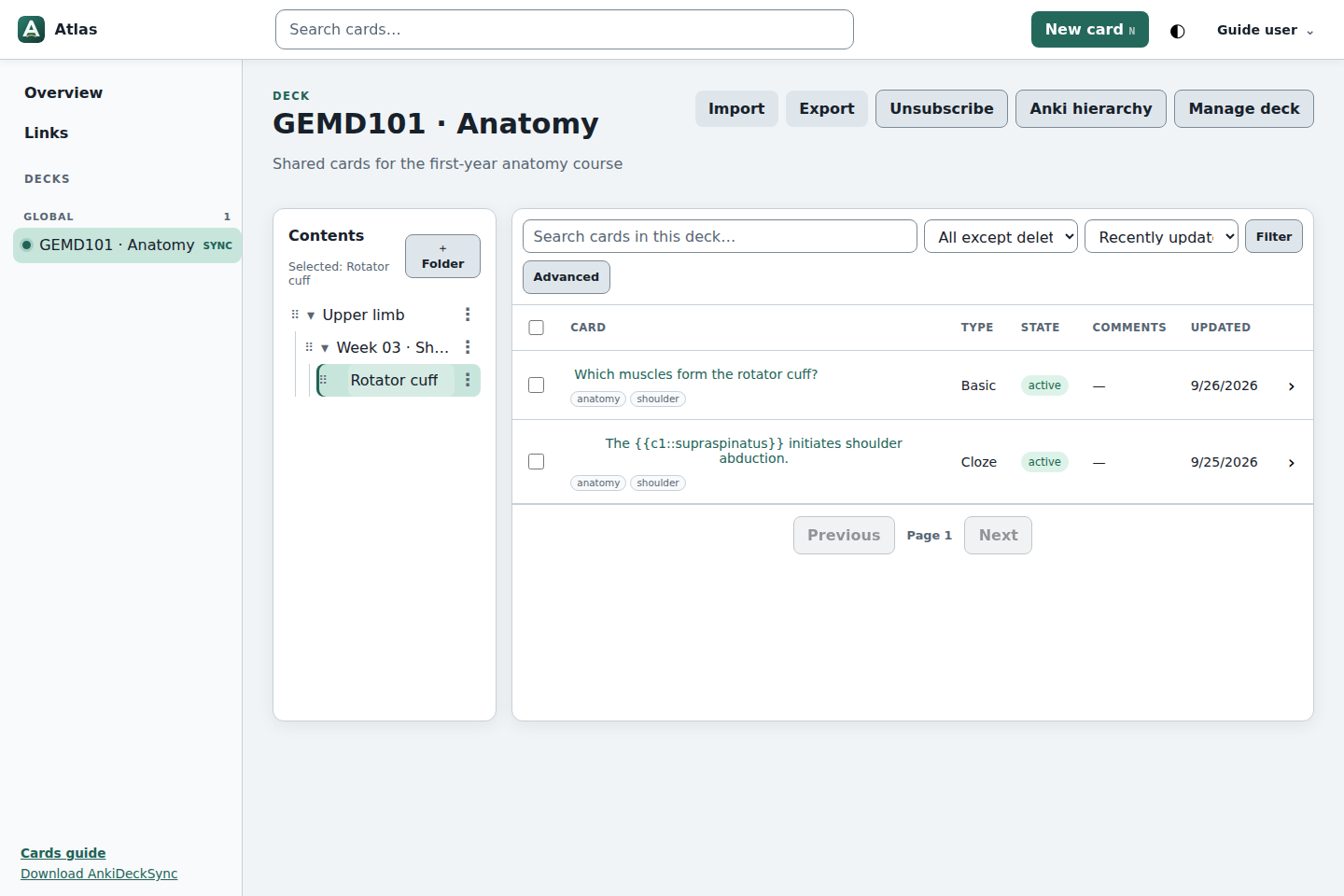
Inside a deck, content folders group its cards. A note stores fields such as Front and Back; its note type decides which review cards Anki generates.
Useful distinction: one Basic note normally makes one card. A Cloze note can make several cards when it contains c1, c2, and later deletion numbers.
Authoring
Create or edit a card
Choose the destination
Open a deck and select the content folder where the card belongs.
Open the editor
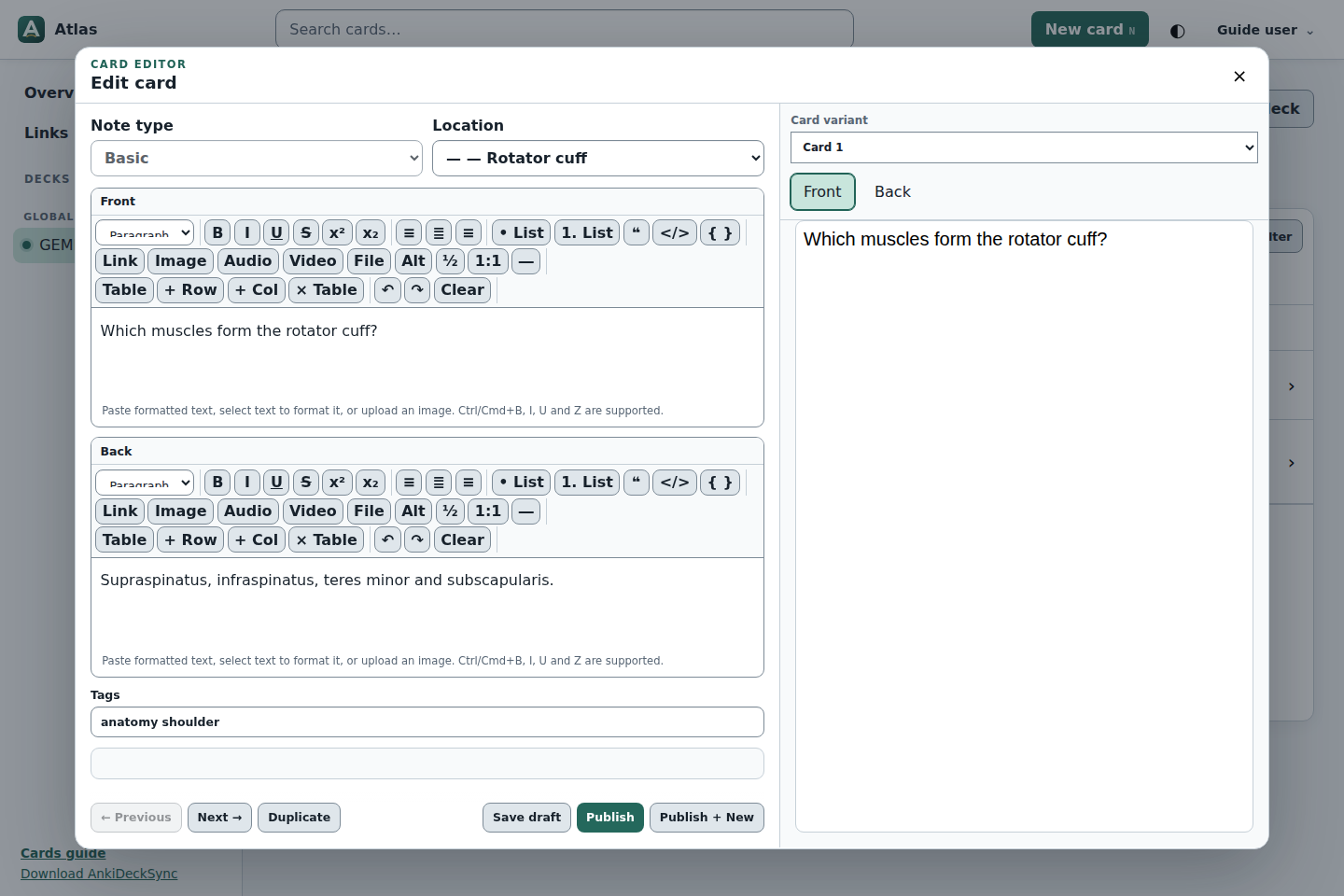
Select New card, or open an existing row to edit it.
Choose a note type
Use Basic for direct question–answer recall, Cloze for missing text in context, or Image Occlusion for labelled diagrams.
Preview, tag and publish
Check both sides in the preview. Add focused tags, then publish—or save/submit a draft when the deck uses approval.
Desktop Anki
Subscribe once, then keep studying normally
Install the add-on
In Atlas, select Download AnkiDeckSync. Install that .ankiaddon file through Anki’s add-on dialog and restart Anki.
Pair this Anki profile
In Anki, choose Tools → AnkiDeckSync → Sign In, then approve the displayed device code in Atlas.
Subscribe and choose a hierarchy
Open the deck in Atlas, select Subscribe, and optionally use Anki hierarchy to flatten or mirror the content folders.
Synchronize
Choose Tools → AnkiDeckSync → Sync Now. Sync also runs when the profile opens and after ordinary Anki sync.
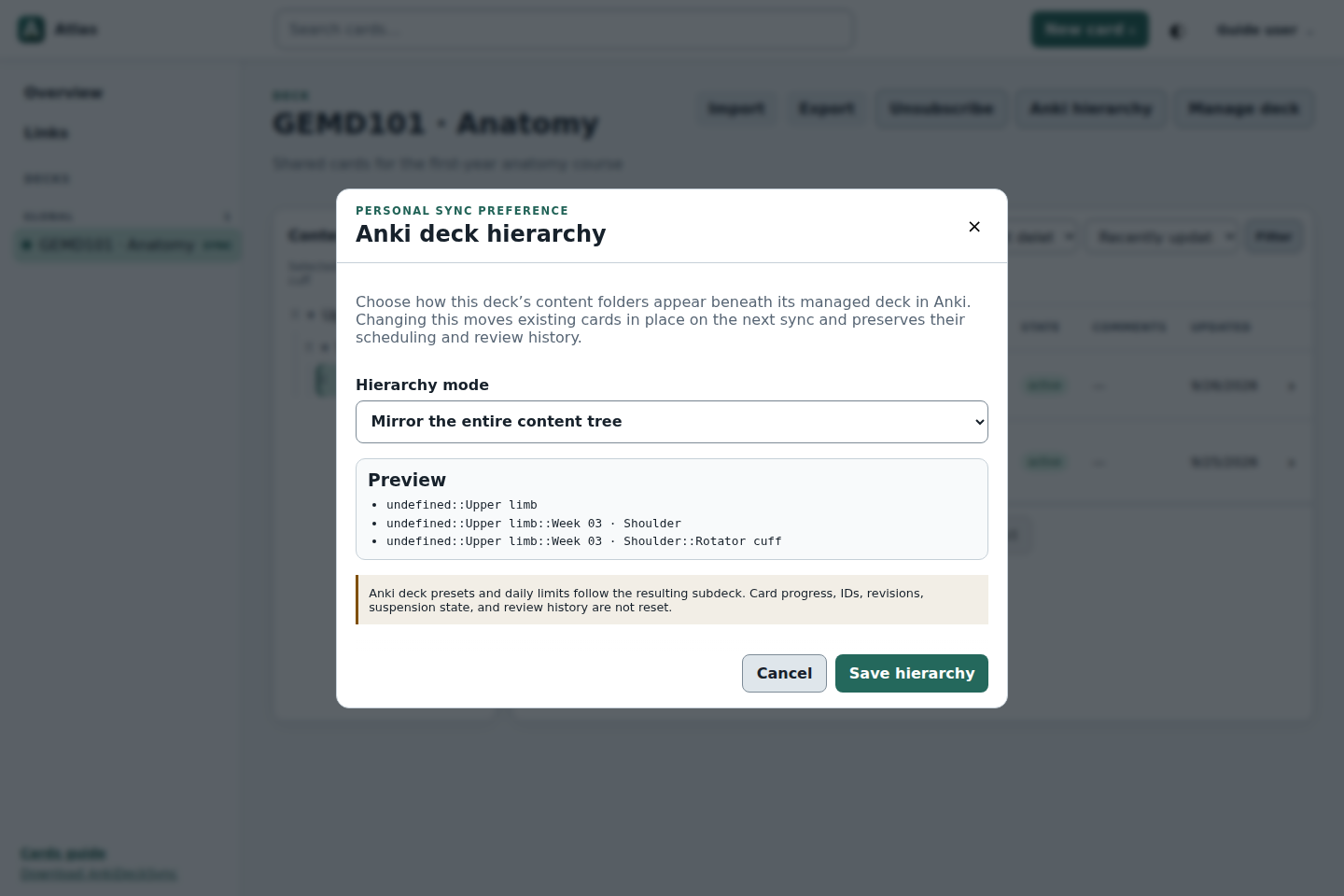
What remains in Anki: scheduling, due dates and review history are not uploaded to Atlas. Content updates preserve managed card identity and review progress. Ordinary Anki sync is still responsible for synchronizing your Anki collection between devices.
Bulk cards
Import with a safe preview
Open Import
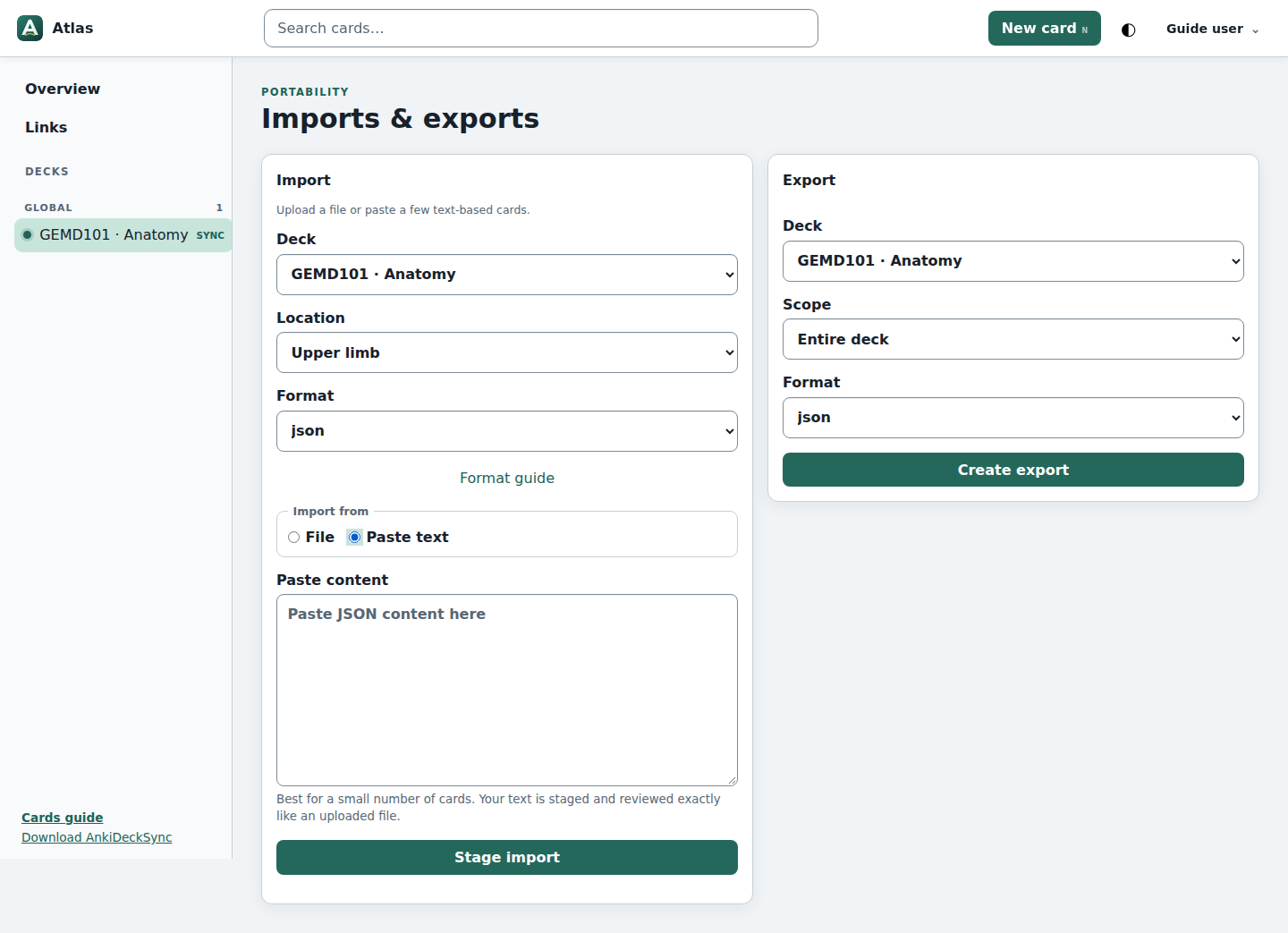
From a deck, select Import, then choose the target deck and content folder.
Choose a format
Use JSON for structured or AI-created cards, CSV/TSV for spreadsheets, or APKG for an Anki package with supported templates and media.
Stage the content
Upload a file, or paste a small JSON/CSV/TSV result. Staging does not change the deck.
Review, then commit
Inspect fields and validation errors; choose Create, Update or Skip for each row. Commit only when the preview is correct.
AI-assisted workflow
Ask an AI to prepare JSON, then verify it
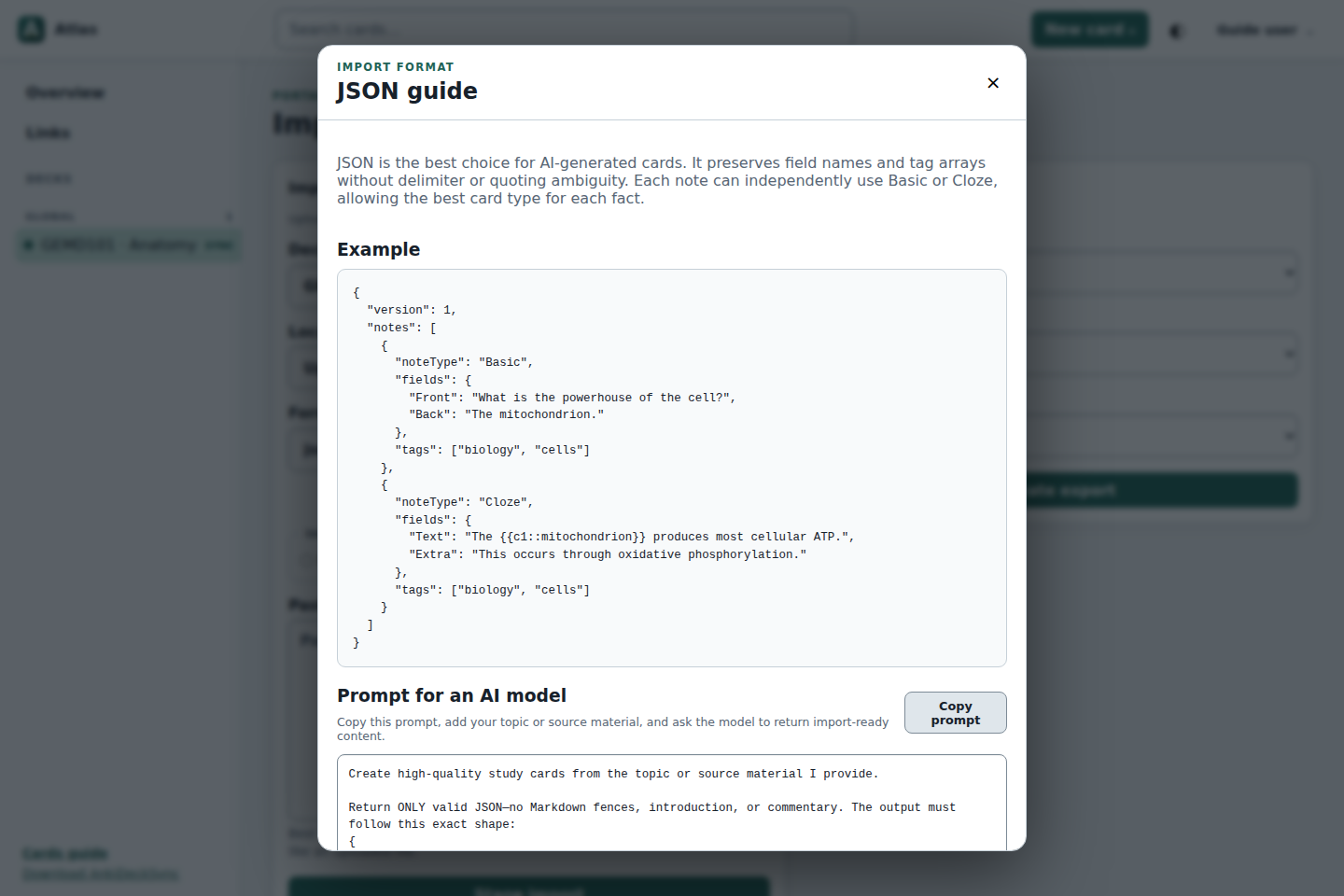
Atlas does not send content to an AI service. It provides a prompt that you copy into your chosen AI assistant, then validates and previews the returned data before import.
Copy the built-in prompt
On the Import screen, choose JSON → Format guide → Copy prompt.
Add source material
Replace the placeholder at the bottom with your topic or permitted source text. Ask for fewer, high-quality cards rather than exhaustive fragments.
Paste only the JSON result
The response must start with {, contain "version": 1 and have no Markdown fences or explanation around it.
Check every card
Confirm factual accuracy, useful recall, correct Cloze numbering, concise answers and appropriate tags before committing.
Minimal valid example
{
  "version": 1,
  "notes": [{
    "noteType": "Basic",
    "fields": {
      "Front": "What initiates shoulder abduction?",
      "Back": "The supraspinatus muscle."
    },
    "tags": ["anatomy", "shoulder"]
  }]
}
Final check before Commit
- One useful idea per question
- Answer works without the source text
- No invented facts or references
- Correct target deck and folder
- No duplicate cards
Privacy: do not submit patient-identifiable, confidential or copyrighted source material to a third-party AI service unless your organization permits it.
Useful destinations
Keep important links close
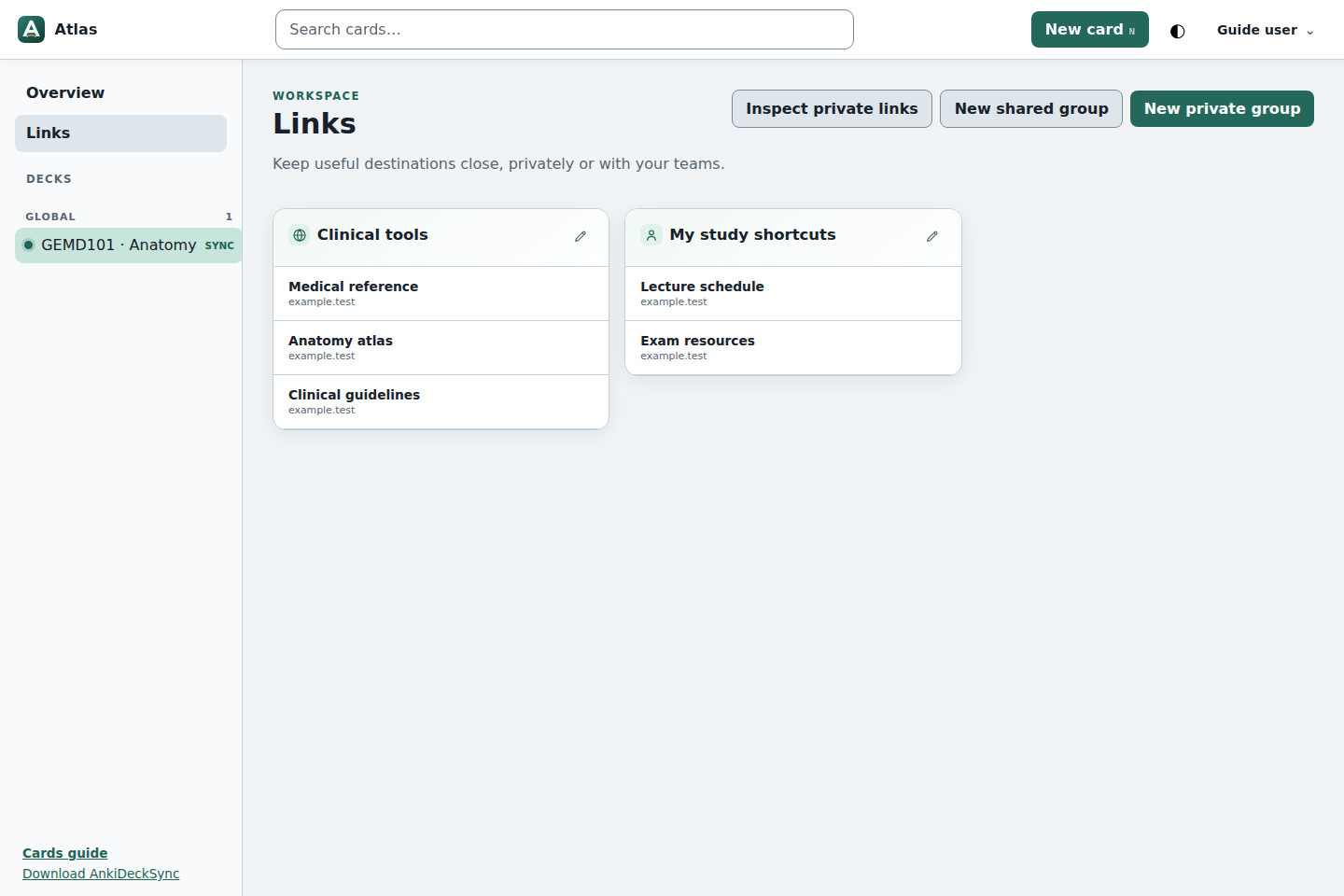
Links is a lightweight start page for the resources you use repeatedly. Keep personal shortcuts private, or create shared groups for clinical tools, course resources and team references.
- Separate private shortcuts from shared collections
- Give selected people or groups viewer or editor access
- Reorder links and move them between groups as needs change
Collaborative workspace
Write, annotate and learn together
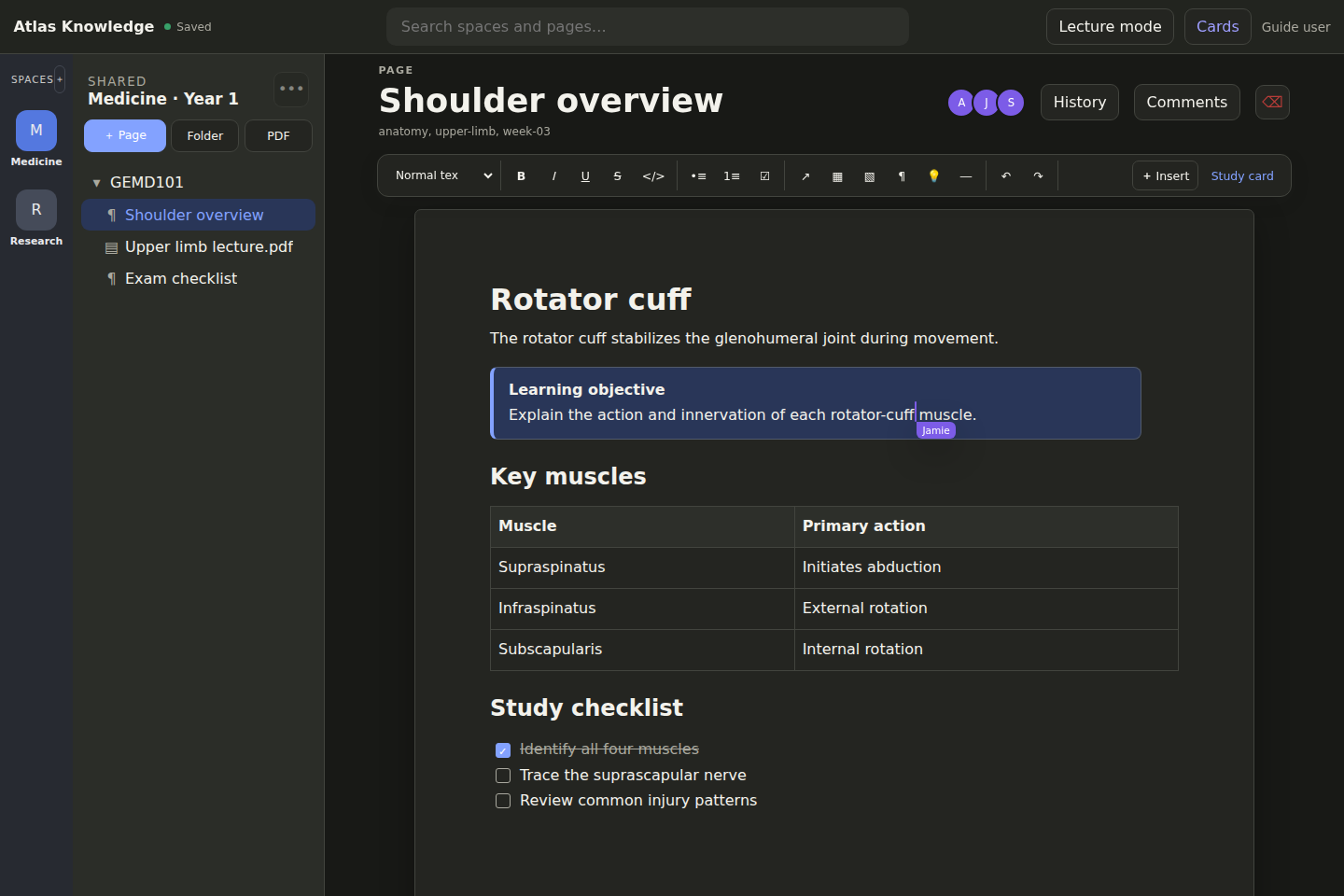
Knowledge is a separate workspace for shared notes and lecture documents. Organize content into spaces, edit rich pages together in real time, and turn selected text into a study card.
Live documents
- Rich pages with headings, tables, checklists, images and callouts
- Live presence and collaborator cursors
- Comments, page history, tags and fast search
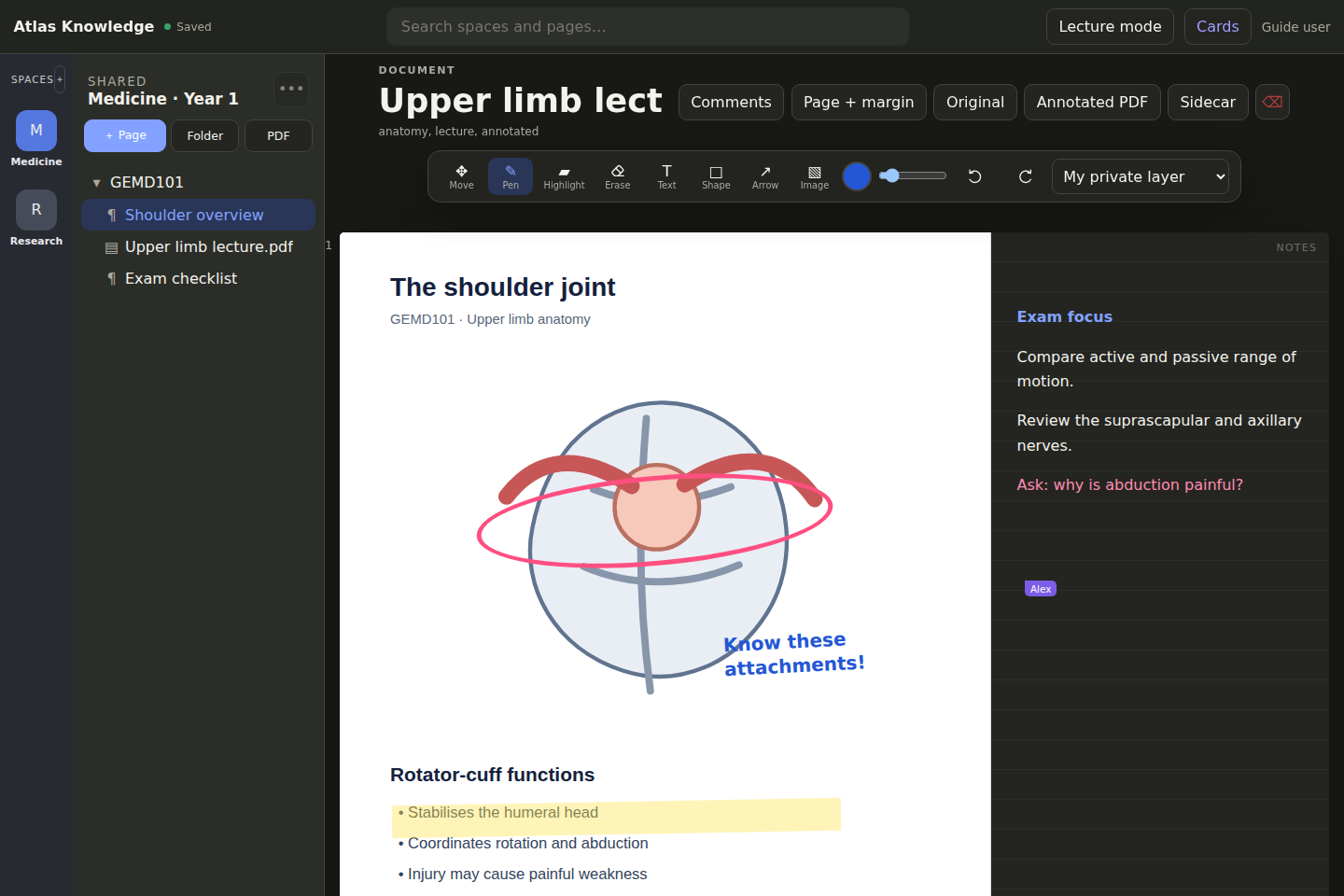
PDF and lecture annotation
- Pen, highlighter, text, shapes, arrows and images
- Expandable page margins and structured page notes
- Personal or shared annotation layers and annotated-PDF export